

Last updated: November 11, 2026
Short answer: if your USB flash drive is not recognized, first try a different USB port and another computer. If you can see the drive in Disk Management (Windows) or Disk Utility (Mac) but not in File Explorer or Finder, it is usually missing a drive letter or the device does not support the file system. Only format the drive as a last resort: this will erase all files.
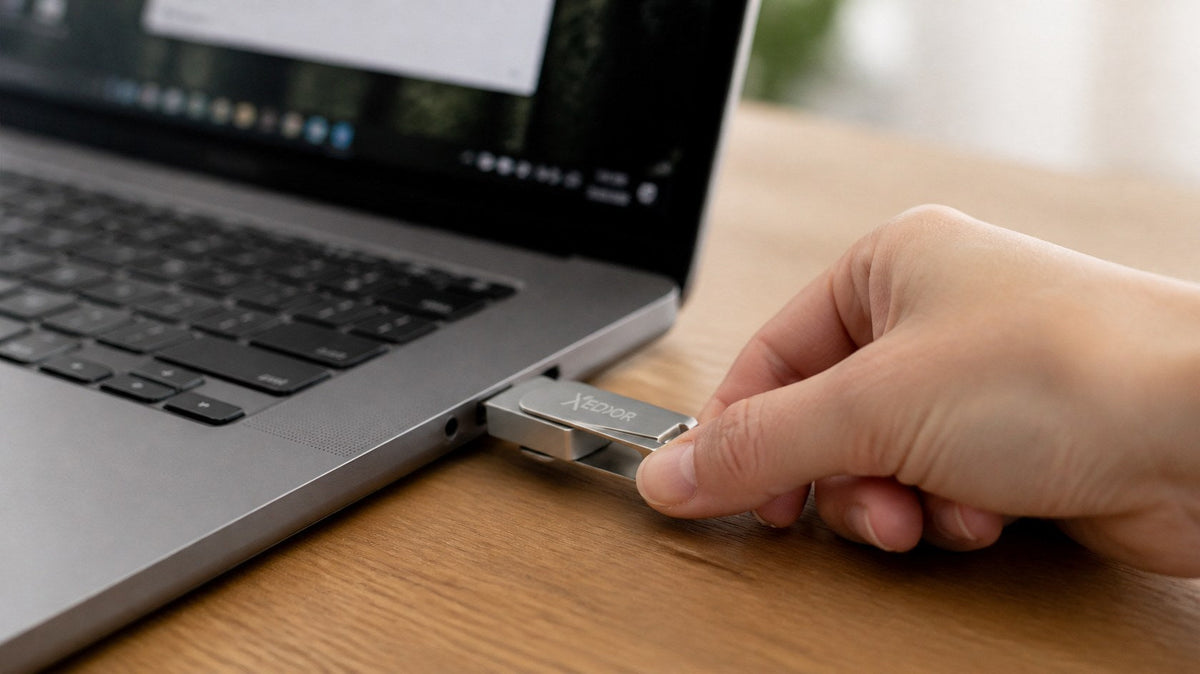
You plug in the USB flash drive and nothing happens. No notification, no drive in File Explorer. In most cases, the drive is not broken and the problem can be solved within a few minutes. Work through the steps below in order.
1. Try a different USB port
A loose or dirty port is the most common cause. Try a port directly on the computer; on a desktop, preferably one on the back. If you are using a hub or adapter, also test without it.
2. Test the drive on another device
Does the drive work on another computer? Then the issue is with your own computer's settings (steps 3 through 6). If it does not work anywhere, go to step 8.
3. Windows: check Disk Management
- Right-click the Start button and choose Disk Management.
- Find the USB flash drive by its capacity (for example, 58 GB for a 64 GB drive).
- Is there no drive letter? Right-click the volume and choose Change Drive Letter and Paths > Add.
- Does it show ‘RAW’ or ‘Unallocated’? Windows does not recognize the file system. See step 7.
4. Windows: check Device Manager
Open Device Manager and expand Disk drives and USB controllers. If you see a yellow exclamation mark next to the drive, right-click it, choose Uninstall device, and remove the drive. Plug it in again; Windows will reinstall the driver.
5. Mac: check Finder and Disk Utility
- Go to Finder > Settings > General and enable ‘External disks’.
- Open Disk Utility and choose View > Show All Devices. If the drive appears grayed out, select it and click Mount.
- Can you read but not write? The drive is probably formatted as NTFS. macOS does not write to NTFS by default.
6. Phone, TV, or car does not recognize the drive
The file system is often the cause. Many TVs and car stereos only read FAT32, while iPhones and many Android devices do not support NTFS. On an Android phone, the device must also support external USB storage (USB OTG). Read about which system works where in FAT32, exFAT, or NTFS.
7. Format the drive (last resort)
If nothing works and there are no files on it that you need, format the drive again as exFAT (Windows and Mac) or FAT32 (TV, car, older devices). Important: formatting erases everything. If you still need the files, first try the drive on another device or contact a data recovery specialist.
8. Is the drive defective?
If the drive is not recognized on any device or in any port, including in Disk Management or Disk Utility, it is probably defective. If there are files you want to recover, contact a data recovery company. If the drive is from Xedor and is still under warranty, contact us.
A drive that works everywhere
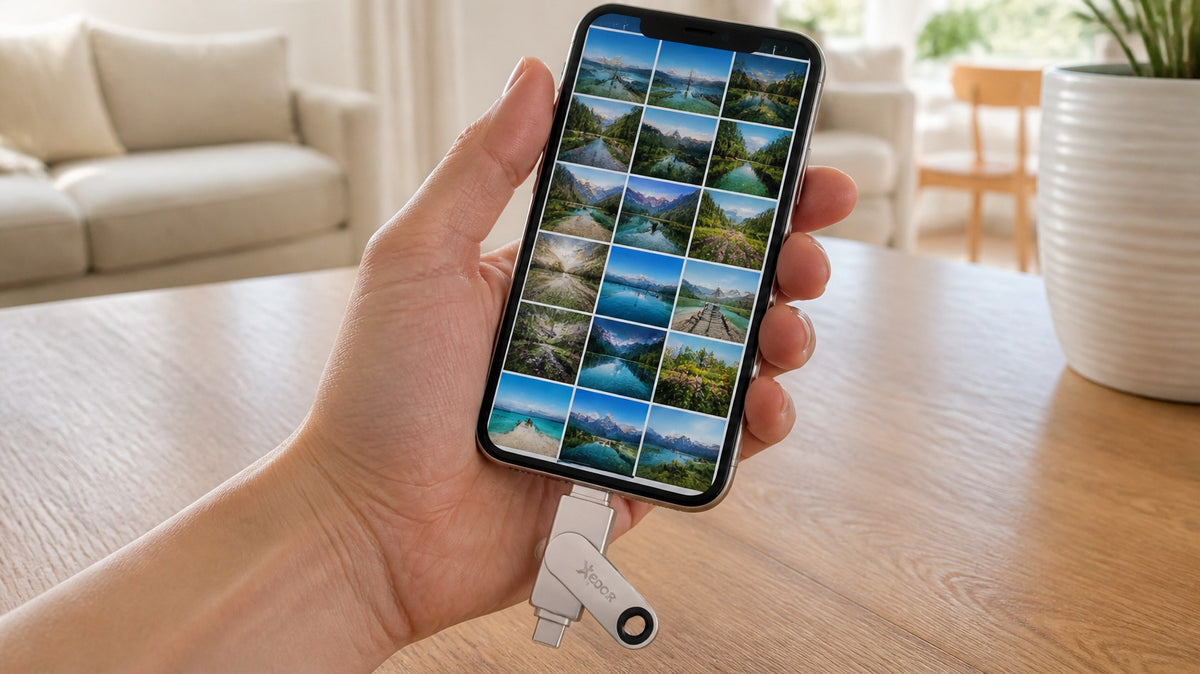
The Xedor Base has USB-C and USB-A and comes formatted as exFAT by default, which Windows, macOS, Android, and iOS can all read and write. Metal housing, from 32 GB to 1 TB.
Prevention is better
- Always safely eject the drive before removing it, especially during or shortly after copying.
- Keep the drive dry and do not leave it loose in your pocket.
- Make sure important files are never stored on only one drive. Read how to create a good backup.
Frequently asked questions
Why is my USB flash drive recognized but I cannot see any files?
Check whether hidden files are visible and whether you are opening the correct drive. If Windows shows the volume as RAW, the file system is damaged or unknown.
My USB flash drive works on Windows but not on my Mac. How is that possible?
The drive is probably formatted as NTFS. A Mac can read NTFS, but does not write to it by default. Format it as exFAT if you want to use it on both systems.
Can a USB flash drive be damaged by simply pulling it out?
Yes, while data is being written: the file system can become corrupted. Always eject the drive first.
My TV does not recognize the USB flash drive. What now?
Format the drive as FAT32 and check whether the TV supports the file format of your videos or photos. With FAT32, a file can be approximately 4 GB at most.
Conclusion
A USB flash drive that is not recognized is usually not broken. First try another port and another device, then check Disk Management or Disk Utility and see whether the file system is suitable for your device. Formatting is the last resort.
View all USB flash drives or consult our guides.
Share via:
Tech gifts up to 25 and up to 60 euros: tips for Sinterklaas and Christmas