

Last updated: October 28, 2026
Short answer: First, check Settings > General > iPhone Storage to see what is taking up the most space. Empty the “Recently Deleted” album, have unused apps removed automatically, and put old photos and videos on a USB drive. On an iPhone 15 or newer, you can plug a USB-C drive directly into your phone; for an iPhone with Lightning, use a drive with a Lightning connector. This frees up gigabytes without an iCloud subscription.
The “iPhone Storage Full” notification always appears at the worst possible time: just when you want to record a video or need to install an update. Many people then take out a larger iCloud subscription. That isn’t necessary. In this blog, you’ll learn how to quickly free up space and safely store your photos outside your phone.
Step 1: See what is taking up space
Go to Settings > General > iPhone Storage. At the top, you’ll see a bar with categories such as Photos, Apps, and Messages. Below it are your apps, sorted by size. For most people, photos and videos are by far the largest category.
Step 2: Free up space quickly without losing anything
- Empty “Recently Deleted”: Deleted photos remain here for 30 days and still count toward your storage. Open Photos > Albums > Recently Deleted and delete them permanently.
- Remove unused apps: In iPhone Storage, enable the option to automatically remove unused apps. Your data will be preserved.
- Old messages: In Settings > Messages, set messages to be deleted after 1 year. Large WhatsApp and iMessage attachments in particular take up a lot of space.
- Large videos: Sort in Photos by media type > Videos. A few long 4K videos can take up dozens of gigabytes.
Step 3: Put photos and videos on a USB drive
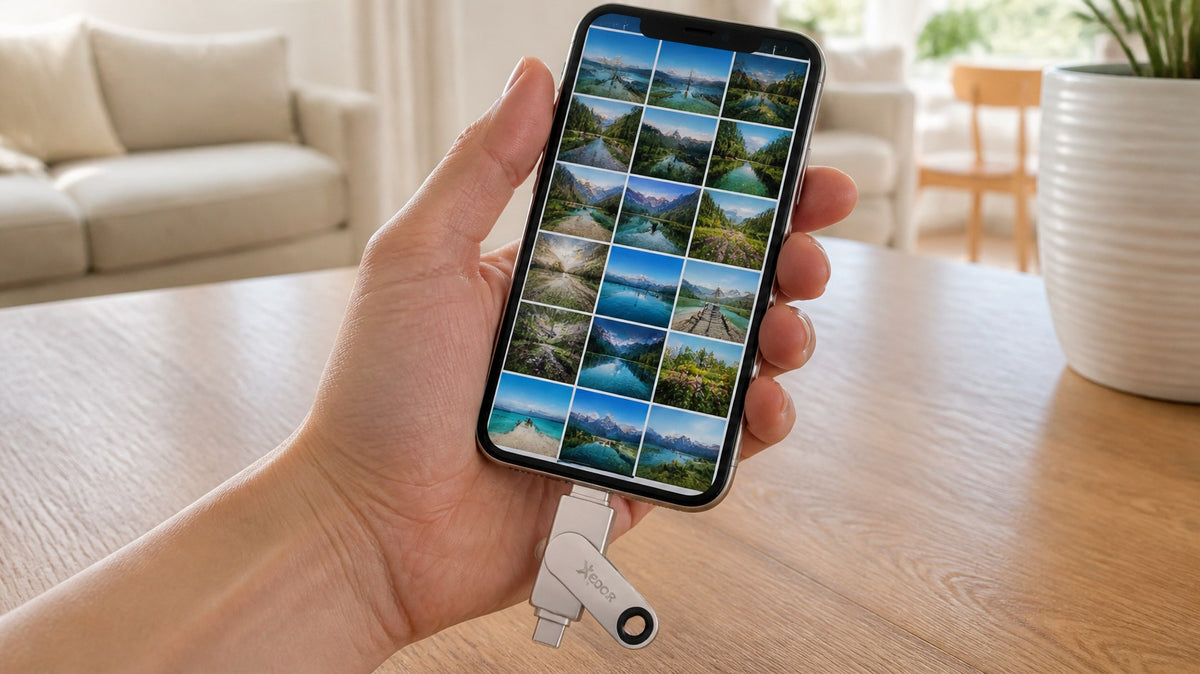
This gives you the most space. Since the iPhone 15, iPhones have USB-C, allowing you to connect a USB drive directly.
iPhone 15, 16, or 17 (USB-C)
- Insert a USB-C drive into your iPhone.
- Open the Photos app and select the photos and videos.
- Tap Share > Save to Files and choose the USB drive.
- Check in the Files app that everything is on the drive.
- Only then delete the photos from your iPhone and empty “Recently Deleted.”
The Xedor Base is formatted in exFAT, which iPhone, Windows, and Mac can all read and write. You can then also transfer the photos to your computer using the USB-A side.
iPhone 14 or older (Lightning)
Use a stick with a Lightning connector, such as the Xedor Flex. It is MFi-certified by Apple and has USB-C on the other end for your laptop. On an iPhone with Lightning, you use an app for this; you will receive the instructions after placing your order.
Free up space without a subscription
- iPhone 15 or newer: Xedor Base with USB-C and USB-A, from 32 GB to 1 TB
- iPhone 14 or older: Xedor Flex with Lightning and USB-C
How much storage do you need on the USB stick?
Add up how much space Photos uses in iPhone storage and choose a stick with plenty of extra capacity. If you use 60 GB for photos, choose 128 GB or more. An extensive table with the number of photos and hours of video for each capacity can be found in how much storage capacity do you need.
USB stick or iCloud?
| USB stick | iCloud+ | |
|---|---|---|
| Cost | one-time | monthly subscription |
| Automatically | no, transfer manually | yes |
| Works without internet | yes | no |
| Also viewable on a PC or TV | yes, directly | via app or website |
The safest approach combines both or uses two sticks. Learn how in our blog about creating a good backup.
Frequently asked questions
Can I use a USB stick with my iPhone?
Yes. On an iPhone 15 or newer, a USB-C stick works directly through the Files app. For older iPhones, you need a stick with Lightning.
Which file system should the USB stick have for an iPhone?
exFAT or FAT32. exFAT is the most convenient because it can also handle large videos. More information in FAT32, exFAT or NTFS.
Will I lose the quality of my photos?
No. Using Save to Files copies the original files.
What if I use iCloud Photos with ‘Optimize Storage’?
The originals are then stored in iCloud, with only smaller versions on your iPhone. When exporting, your iPhone first downloads the originals, so make sure you have Wi-Fi.
Conclusion
You can free up a full iPhone without a subscription: first empty ‘Recently Deleted’ and remove unused apps, then move photos and videos to a USB stick. Check the copy before deleting anything from your iPhone.
View all USB sticks. For help transferring files, see our guides.

Share via:
New laptop without a charger? Here's how to choose the right USB-C charger