

Last updated: November 25, 2026
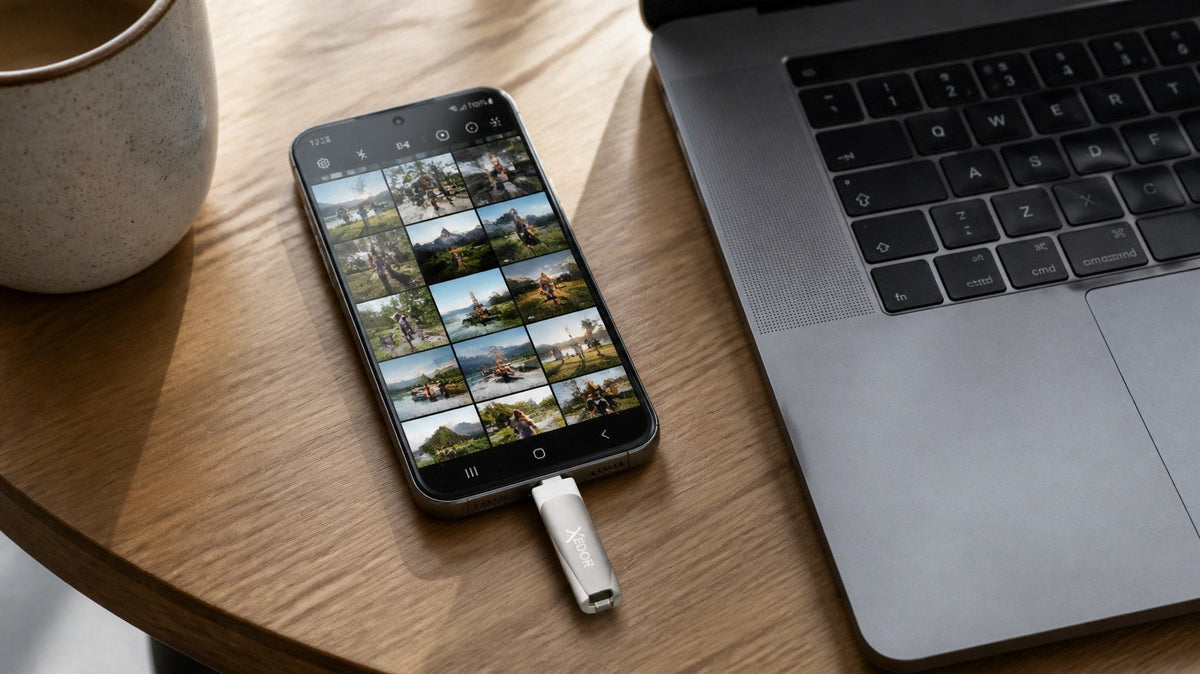
Short answer: the fastest way without a cable or cloud is a USB stick with both USB-C and USB-A. Plug the USB-C end into your Android phone, copy the photos to the stick with Files by Google, then plug the USB-A end into your PC. For a handful of photos, Google’s Quick Share also works, sending them wirelessly via Wi-Fi and Bluetooth to a Windows PC.
A full phone, making a photo book, or simply creating a copy on your computer: transferring photos from your Android phone to your PC is something almost everyone does regularly. The cable you need for this is often misplaced or only works for charging. And not everyone wants to send their photos through the cloud. These are the three best alternatives.
The three methods compared
| Method | Best for | Required |
|---|---|---|
| USB stick with USB-C and USB-A | hundreds of photos and videos, even without internet | a dual stick |
| Quick Share | a few photos, quickly in between | Windows PC with the Quick Share app, Wi-Fi, and Bluetooth |
| SD card and card reader | phones with a microSD slot | card reader |
Method 1: via a USB stick (recommended)
- Plug the USB-C end of the stick into your phone and allow access when prompted.
- Open Files by Google (or the My Files app on Samsung).
- Go to Pictures or the DCIM/Camera folder and select the photos.
- Tap the three dots > Copy to and choose the USB storage.
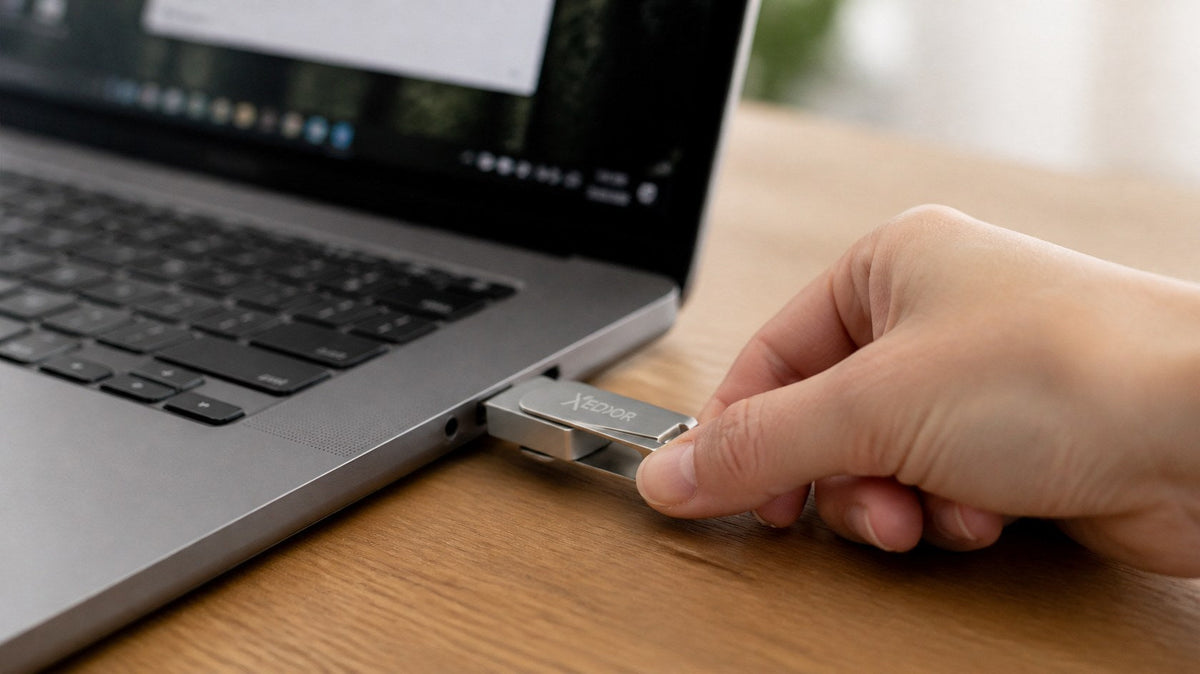
- Safely eject the stick via the “Eject” notification and plug the USB-A end into your PC.
- Open File Explorer and drag the photos to a folder on your computer.
This also works without internet and is fast for large numbers of photos and videos. The stick immediately remains an extra backup afterward.
From phone to PC on a single stick
The Xedor Base has USB-C for your Android phone and USB-A for your PC. No cable, no app, no account. It uses exFAT by default, so even large videos fit on it.
Method 2: wirelessly via Quick Share
Quick Share is Android’s built-in sharing feature (formerly Nearby Share). Google also offers a Quick Share app for Windows.
- Install Quick Share on your Windows PC and sign in with the same Google account as on your phone.
- Turn on Wi-Fi and Bluetooth on both devices.
- On your phone, select the photos, tap Share > Quick Share, and choose your PC.
Convenient for a few photos. For hundreds of photos or long videos, a USB flash drive is usually faster and more reliable.
Method 3: via the SD card
Does your phone have a microSD slot and do you save your photos on the card? Remove the card and read it with a card reader, such as the Xedor Readex. Learn how that works in transferring photos from an SD card.
Tips
- Check the copy on your PC before deleting anything from your phone.
- Does the flash drive not work on your phone? Not every Android device supports USB storage (USB OTG). Check your phone’s specifications.
- Keep a second copy. Follow the 3-2-1 rule from our blog about creating a good backup.
Frequently asked questions
How do I transfer photos from Android to a PC without a cable?
With a USB flash drive that has USB-C and USB-A, wirelessly with Quick Share, or via your phone’s SD card.
Does a USB flash drive work on every Android phone?
On most phones with USB-C, yes. The device must support external USB storage (USB OTG). Almost all recent models do.
Which file system should the flash drive use?
exFAT or FAT32. exFAT is the most convenient for large videos. Read more in FAT32, exFAT or NTFS.
How large should the USB flash drive be?
Check your phone under Settings > Storage to see how much space your photos and videos take up, and choose a flash drive that is comfortably larger. You can find an overview in which storage capacity do you need.
Conclusion
Without a cable or cloud, the fastest way to transfer your photos is with a USB flash drive that has USB-C and USB-A. For a few photos, Quick Share is convenient, and if your phone has a microSD card, a card reader works too.
View all USB flash drives.
Share via:
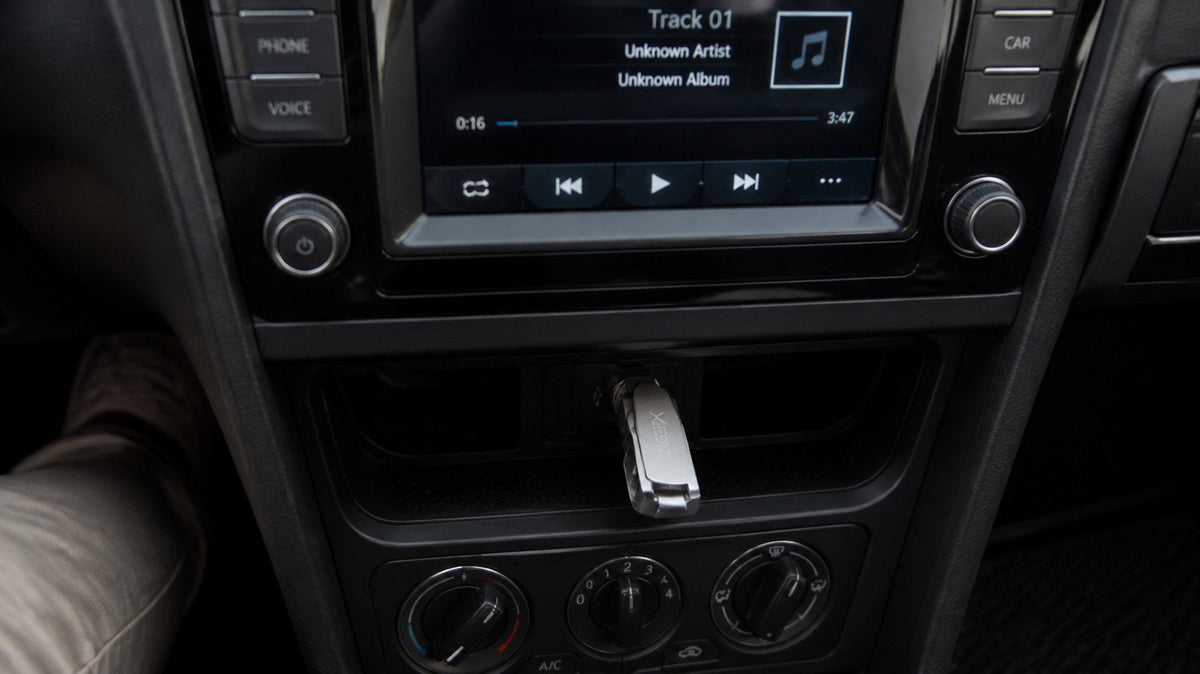
Put music on a USB stick for your car: here’s how it works