

Last updated: September 30, 2026
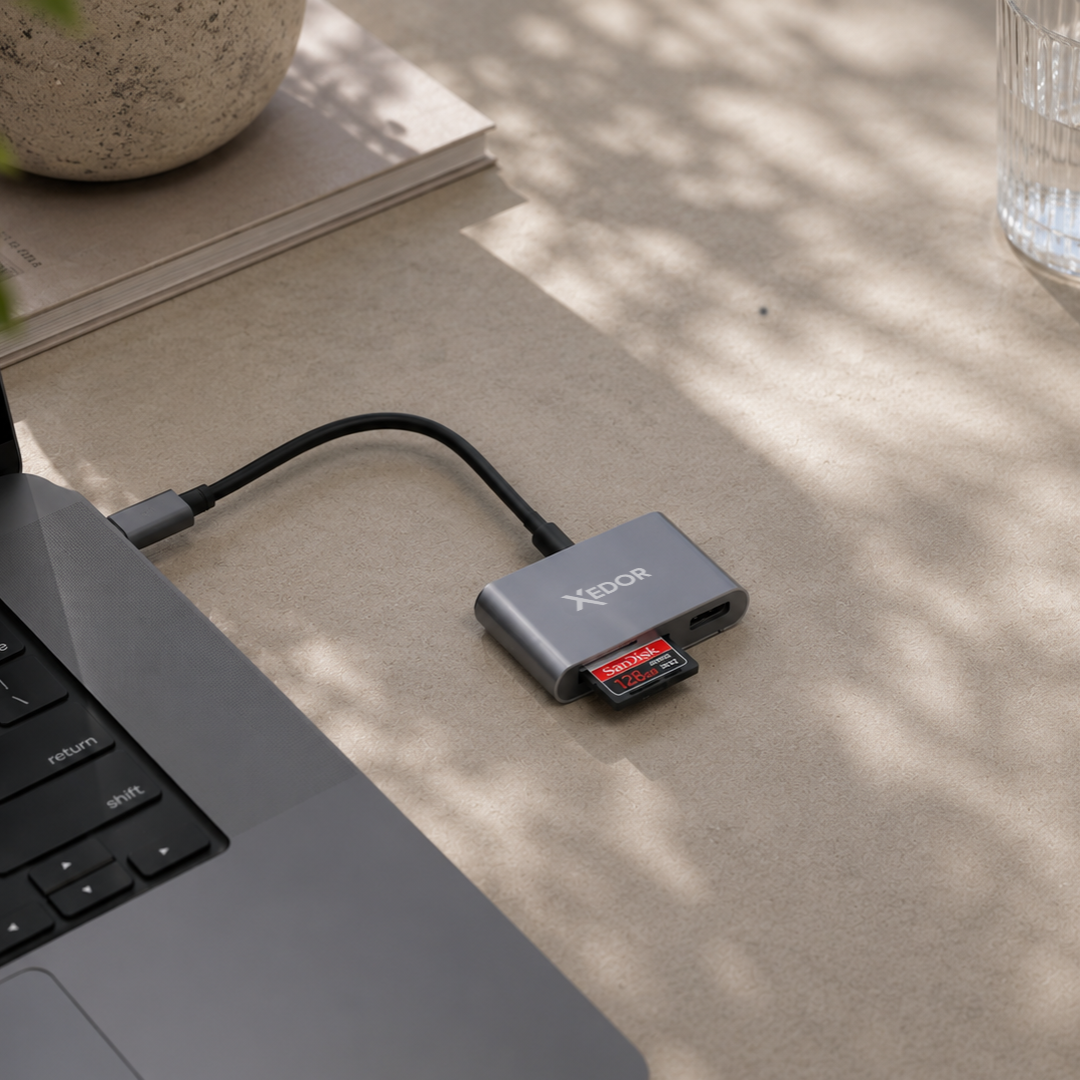
Short answer: to transfer photos from an SD or microSD card, you need a card reader that fits your device. Insert the card into the card reader, connect it to your phone or laptop’s USB-C port (or via USB-A on an older PC), and import the photos using the Photos app, Files app, Files by Google, File Explorer, or Finder. The Xedor Readex works with SD and microSD, on both USB-C and USB-A.
After a vacation, photo shoot, or drone flight, you probably want to view and save your photos and videos as soon as possible. You do not always need to connect the camera to your computer with a separate cable. With a suitable card reader, you can read an SD or microSD card directly on a phone, tablet, or laptop.
In this blog, we explain what you need and how transferring works on an iPhone, Android device, Windows computer, and Mac.
What do you need to read an SD card?
To access files on a memory card, you need a card reader that is compatible with both the memory card and your device’s connector.
The Xedor Readex SD card reader features:
- a standard SD card slot;
- a microSD card slot;
- a USB-A port;
- a USB-C connector;
- an included USB-A adapter.
This allows you to use the same card reader with modern devices with USB-C and computers with a traditional USB-A port. The Readex supports SD, SDHC, SDXC, microSD, microSDHC, and microSDXC cards.
What is the difference between SD and microSD?
A standard SD card is widely used in digital cameras, camcorders, and professional recording equipment. A microSD card is significantly smaller and is often found in drones, action cameras, security cameras, and some smartphones.
The files on both card types are stored in a similar way. The main difference is the physical size of the card.
Transferring photos to an iPhone or iPad with USB-C
If you have an iPhone or iPad with USB-C, you can connect a compatible card reader directly.
- Remove the SD or microSD card from your camera or drone.
- Insert the card into the appropriate slot on the card reader.
- Connect the card reader to the USB-C port.
- Open the Photos or Files app.
- Select the photos and videos you want to import or copy.
- Afterward, check that the files have been saved correctly.
Apple supports importing photos and videos directly from an SD card into the Photos app. Depending on the file type, you may also be able to access the files through the Files app.
Do you have an older iPhone with a Lightning connector? Then you need a separate card reader or adapter suitable for Lightning. A USB-C card reader cannot be connected directly to a Lightning port.
Reading an SD card on Android
Many Android smartphones and tablets can access external USB storage. Google supports this through Files by Google on devices running Android 7.0 or higher. However, the device manufacturer must have enabled external USB storage and USB host functionality.
- Insert the memory card into the card reader.
- Connect the card reader to your phone or tablet's USB-C port.
- If necessary, accept the notification to allow access to the USB device.
- Open Files by Google or your device's file manager app.
- Open the USB storage and look for the folder containing photos or videos.
- Copy the desired files to your device's internal storage.
The folder containing camera files is often called DCIM, but this may vary by camera or drone.
One card reader for all your devices
The Xedor Readex reads SD and microSD cards, fits USB-C, and also works with USB-A using the included adapter. Works with iPhone 15 and newer, Android, iPad, Windows and Mac.
Importing photos on a Windows laptop
On a Windows computer, you can open the files through File Explorer or import them using the Microsoft Photos app.
- Insert the SD or microSD card into the card reader.
- Use the included USB-A adapter if necessary.
- Connect the card reader to the computer.
- Open File Explorer and select the memory card.
- Copy the files to a folder on your computer.
You can also open the Photos app and choose to import from a connected device. Windows will then automatically search for available photos and videos.
Importing photos on a Mac
On a Mac, you can open the memory card through Finder or import the photos directly into the Photos app.
- Connect the card reader to your Mac.
- Open the Photos app.
- Choose ‘File’ in the menu bar, then ‘Import’.
- Select the photos and videos you want.
- Choose where you want to save the files.
If you prefer to use your own folder structure, open the memory card through Finder and copy the files manually.
Why isn't my SD card recognized?
Is the memory card not showing up? Check the following:
- Is the card fully inserted into the card reader?
- Are you using the correct slot for SD or microSD?
- Does your phone support external USB storage?
- Is the USB-C port free of dust or dirt?
- Is the memory card formatted with a supported file system? Read more about this in FAT32, exFAT or NTFS.
- Does the card work on another device?
If a card is damaged, the device may ask you to format it. Do not do this before trying to secure important files in another way. Formatting deletes the data currently on the card.
Copy files before deleting them
Do not delete photos from the memory card immediately after importing them. First open several files on the new device and check that the transfer has been completed successfully.
For important photos, it is advisable to keep a second copy as well, for example in the cloud or on a USB flash drive. Also read how to create a good backup of your photos.
Frequently asked questions
Can I read an SD card on my iPhone?
Yes. On an iPhone 15 or newer, connect a USB-C card reader directly and import via the Photos or Files app. For older iPhones with Lightning, you need a Lightning card reader.
Which memory cards work with the Xedor Readex?
SD, SDHC, SDXC, microSD, microSDHC, and microSDXC.
Where are the photos stored on the SD card?
Usually in the DCIM folder. Some drones and action cameras use their own folder name.
Why doesn't my Android phone detect the card reader?
Not every device supports external USB storage. Check whether your phone supports USB OTG, allow access in the notification, and open Files by Google.
Conclusion
With a suitable card reader, you can transfer photos and videos directly from an SD or microSD card to a smartphone, tablet, Windows computer, or Mac.
The Xedor Readex combines an SD card slot, microSD card slot, and USB-A port with a USB-C connection and included USB-A adapter. This means you only need one compact card reader for different devices. Also check out our full range of card readers.
For more information about USB-C connections, see our blog USB-C explained: what can you do with it? Need help using a Xedor product? Check out our digital manuals.
Share via:
Why your smartphone is getting more expensive (we went to the source)
USB-C to AUX not working? These are the most common causes