

Last updated: September 30, 2026
Short answer: a good backup follows the 3-2-1 rule: keep 3 copies of your important files on 2 different types of storage (for example, your computer and a USB flash drive), with 1 copy at another location or in the cloud. Make the backup at a set time, then disconnect the USB flash drive and regularly test whether you can restore your files.
Photos, documents, and work files often only become important when you lose them. A defective laptop, lost phone, accidentally deleted folder, or ransomware attack can suddenly make files inaccessible.
A good backup does not prevent every problem, but it does ensure that you can restore your data. In this blog, we explain how to set up a simple and reliable backup strategy.
What is a backup?
A backup is an extra copy of important files that is separate from the original data.
A file stored only on your laptop is not backed up. If the same file is also on a USB flash drive, external drive, or online backup location, you have an extra copy.
It is important that the backup is not continually dependent on the same device. If the laptop and the only backup are damaged or stolen at the same time, you still do not have a usable copy.
Use the 3-2-1 backup rule
A well-known method is the 3-2-1 rule:
- 3 copies of important files;
- on 2 different types of storage;
- with 1 copy at another location.
A practical setup could look like this:
- the original files on your computer;
- a local backup on a separate storage device, such as a USB flash drive;
- an extra copy in a secure cloud environment or at another location, for example a second USB flash drive at a family member’s home or at work.
This means you are not dependent on a single device, storage medium, or physical location.
Which files should you back up?
Start with files that are difficult or impossible to replace:
- personal photos and videos;
- administrative records and invoices;
- work and school documents;
- contracts and important correspondence;
- designs, projects, and source files;
- recovery codes and important exports.
You can usually reinstall programs and apps. You cannot download your own photos, documents, and projects again when they are lost.
Is synchronization the same as a backup?
Not always. A synchronization service keeps files the same across multiple devices. When you delete or overwrite a file, that change may also be synchronized to the other devices.
Some cloud services offer version history or a trash bin that allows older files to be restored. Check which recovery options your service actually provides.
Therefore, preferably use synchronization as part of your backup strategy, not automatically as your only protection.
Backing up on a USB flash drive
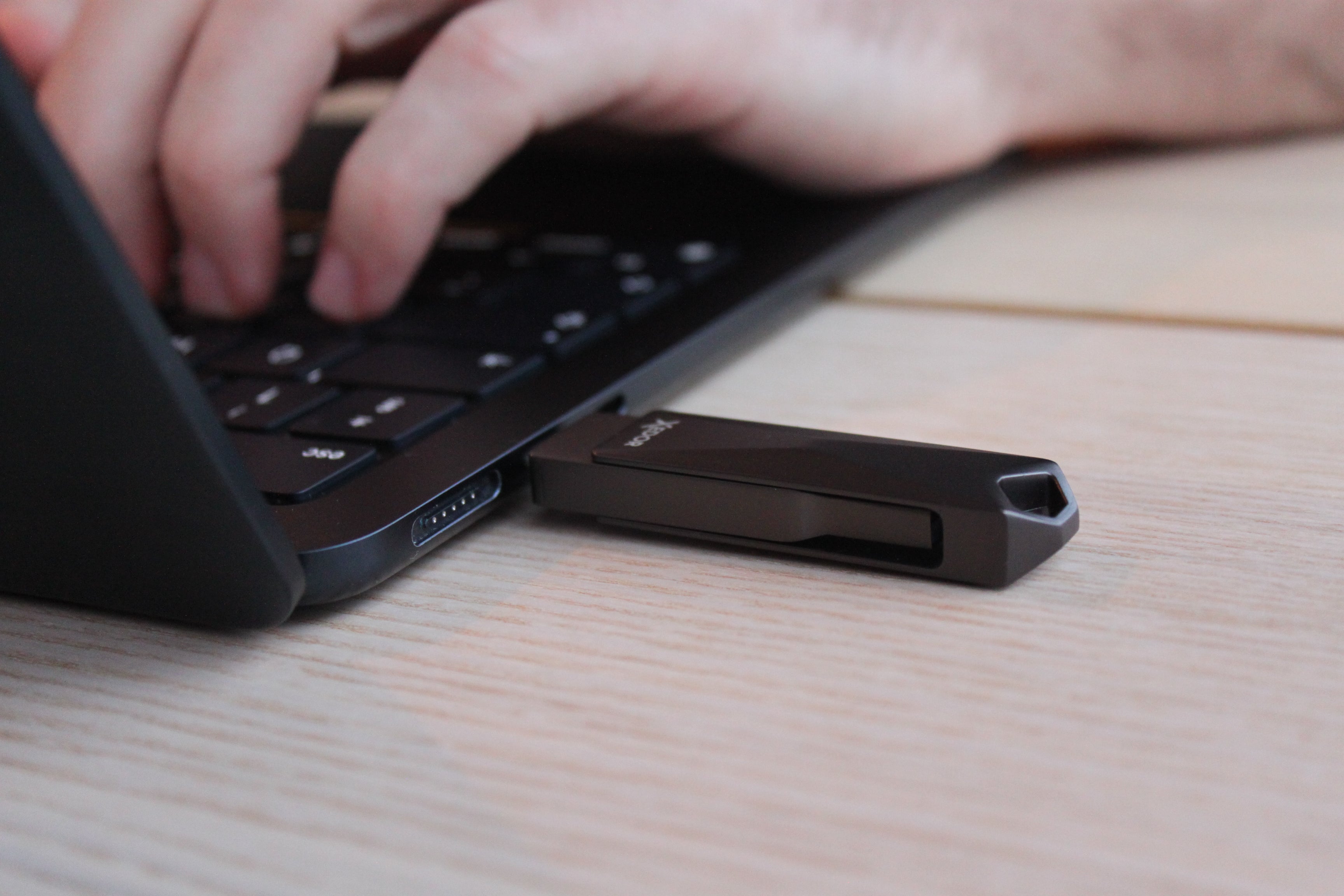
A USB flash drive is suitable for a selective backup of documents, photos, and other important folders.
- Connect the USB flash drive to your computer.
- Create a clear main folder, for example ‘Backup 2026’.
- Create subfolders for photos, documents, and administration.
- Copy the desired files.
- Afterward, open a few files from the USB flash drive.
- Safely remove the flash drive and store it in a designated place.
A USB flash drive that remains plugged into the same laptop continuously is less well protected against theft, malware, or damage to the device. Therefore, disconnect a backup medium when the backup is complete.
Not sure how much space you need? Read which storage capacity you need.
Back up directly from your phone and computer
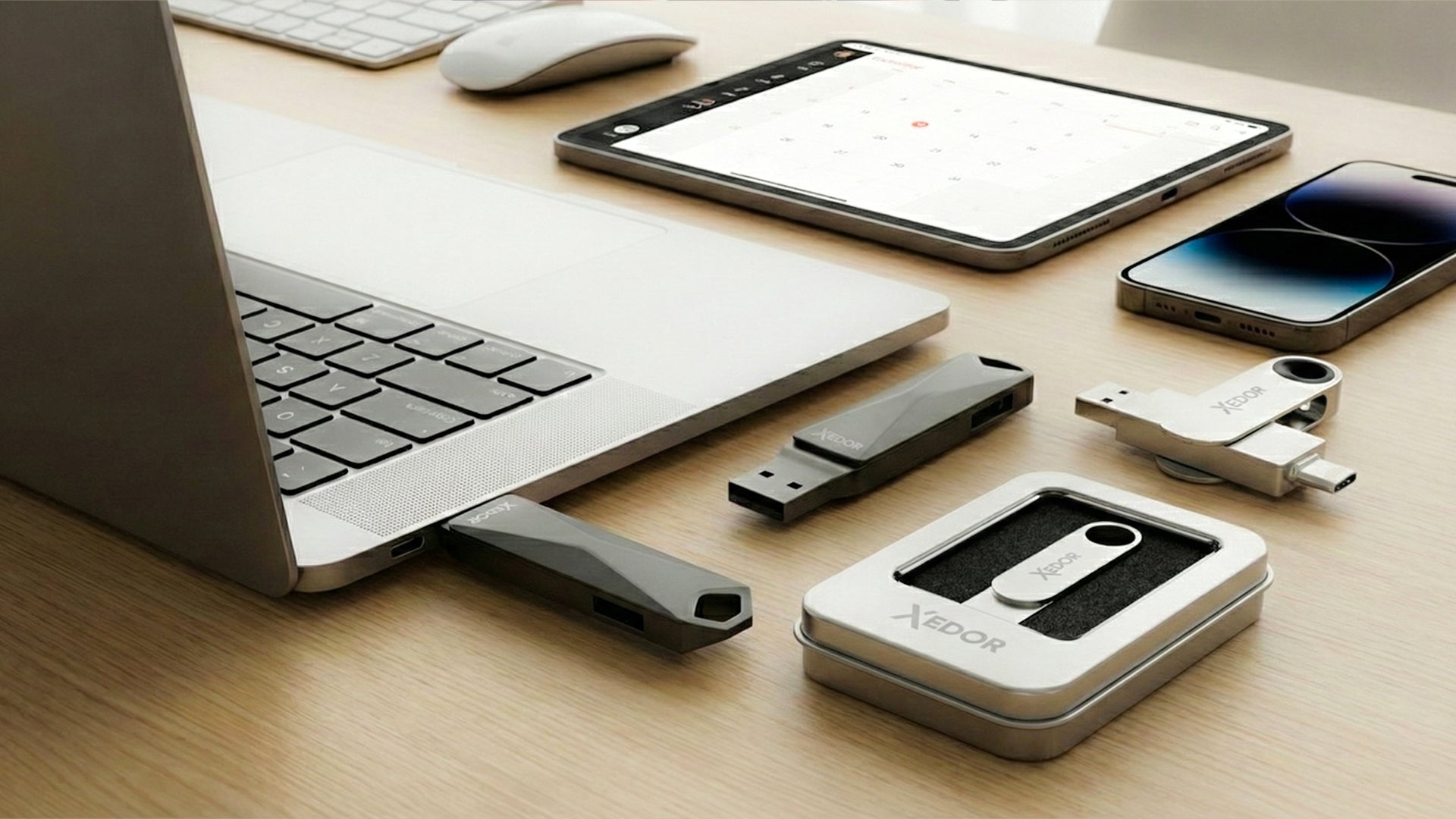
The Xedor Base has USB-C and USB-A, so you can transfer photos without a cable or adapter from your Android phone, iPhone 15 or later, and laptop. Do you have an iPhone with Lightning? Then choose the Xedor Flex with Lightning and USB-C.
Backing up on Windows
Windows Backup can save selected folders, settings, and other data through OneDrive. You can also use File History with an external drive or network location.
For a manual backup, you can also copy important folders directly to a USB flash drive or external drive.
Backing up on a Mac
macOS includes Time Machine. This allows a Mac to automatically make backups to a suitable external storage device.
Time Machine can store apps, music, photos, emails, and documents, among other things. Older or deleted versions of files can also be restored from the backup.
Backing up a smartphone
On an iPhone or iPad, you can enable iCloud Backup through the iCloud settings. On Android, data and photos can be stored through your Google account and Google Photos.
For extra control, you can also periodically export important photos to a computer or directly to a USB flash drive with USB-C or Lightning. This also gives you a copy that does not depend on your cloud subscription.
How often should you make a backup?
The right frequency depends on how often your files change.
- Do you work with important files every day? Make a daily or automatic backup.
- Do you mainly use the computer privately? A weekly backup may be sufficient.
- Immediately make an extra copy of your photos and videos after a trip or event.
- Always make a current backup before a major software update or repair.
A simple, consistent routine is better than a complicated system that you ultimately do not use.
Test whether you can restore the backup
A backup is only useful when you can actually restore the files.
Therefore, check regularly:
- whether the storage device is still recognized;
- whether files can be opened;
- whether recent folders are included in the backup;
- or whether you know how the recovery process works;
- or whether the cloud account details and recovery methods are up to date.
Choose the right file system
Do you want to use a USB stick on both Windows and Mac? Then exFAT is often more practical than NTFS. If you use older equipment, FAT32 may be necessary.
For the differences, read our blog FAT32, exFAT or NTFS: which file system should you choose?
Frequently asked questions
Is a USB stick suitable for backups?
Yes, a USB stick is convenient and affordable for selectively backing up photos and documents. However, use it as part of the 3-2-1 rule and not as the only copy.
How long do files remain intact on a USB stick?
Flash memory stores data for years, but it is not intended to be the only archive for decades. Connect your backup stick at least once a year, check that your files still open, and refresh the backup.
How do I back up my iPhone photos without iCloud?
Transfer your photos to a computer, or use a USB stick that plugs directly into your iPhone: USB-C for iPhone 15 and newer, Lightning for older models. The steps are in our manuals.
What is the difference between a backup and an archive?
A backup is an extra copy of files that you still use. An archive is a place for files you no longer need every day. You also need a backup of an archive.
Conclusion
A reliable backup does not consist of a single copy. By applying the 3-2-1 rule, you spread the risk across multiple storage media and locations.
Store important files on your computer, also make a local copy, and keep an extra backup in another location. Regularly check that you can also restore the files.
View our USB sticks for storing and carrying files and consult our digital manuals if you have product questions. Photos on an SD card? Also read how to transfer photos from an SD card.

Share via:
FAT32, exFAT, or NTFS: which file system should you choose for a USB flash drive?
What storage capacity do you need: 32 GB, 64 GB, 128 GB, 256 GB, 512 GB, or 1 TB?